User Management
4 minute read
Overview
Where to find it?
The functionality can be found in the CloudHub sidebar, under the “User Management” section.

Roles
Role Overview
Here you can see an overview of all created roles and whether the specific role controls which pages someone can view (“Page Management”), which contracts the role has access to (“Contract Management”), or what actions the role can perform in the Product Dashboard.
Under “Actions,” you can delete roles or open the edit dialog.

Add Roles
Clicking “Add New Role” opens a menu. Here, settings for the corresponding role can be configured.

Here you can add permissions.
Three sections are important:
- Role Name: This label will also appear in the overview.
- The checkboxes for “Page Management”, “Product Management”, and “Product Dashboard Management”
- The respective configuration options for each section:
Page Management: Shows a sidebar-like structure with an overview of pages and subpages (expandable). Strikethrough categories indicate options that are not available.

Contract Management: Shows basic information about the existing contracts and lets you select which are visible to the role.

Product Dashboard Management: Shows basic product actions, and lets you select which are available to the role.

After clicking “Save Role”, you’ll return to the overview page, where the newly created role will be listed.
Edit Roles
You can, of course, also edit existing roles.

Depending on the management area, you can reconfigure the respective options. The role name can also be changed.
You cannot change the management area a role applies to. If needed, you must create a new role with the desired name and area.
Delete Roles
Clicking the trash icon on the overview page will open a confirmation dialog asking you to confirm that the role should be deleted.

Users
User Overview

Here you can see which users have been created. Alongside the unique identifier (email address), their assigned roles are also listed.
Just like in the Role Management section, you can “Edit”, “Delete”, and perform “Actions” here.
Add Users
Clicking “Invite User” opens a dialog that asks for the user’s email address and the desired roles (as defined in the previous step).

Edit Users
By clicking the edit icon from the user overview page, you’ll reach a screen where assigned roles can be modified.


To understand the full set of permissions granted by the selected roles, a second tab offers a read-only view showing which pages will be visible.

Delete Users
Delete a Single User
Just like with deleting roles, users can also be deleted by clicking the delete icon from the user overview page.
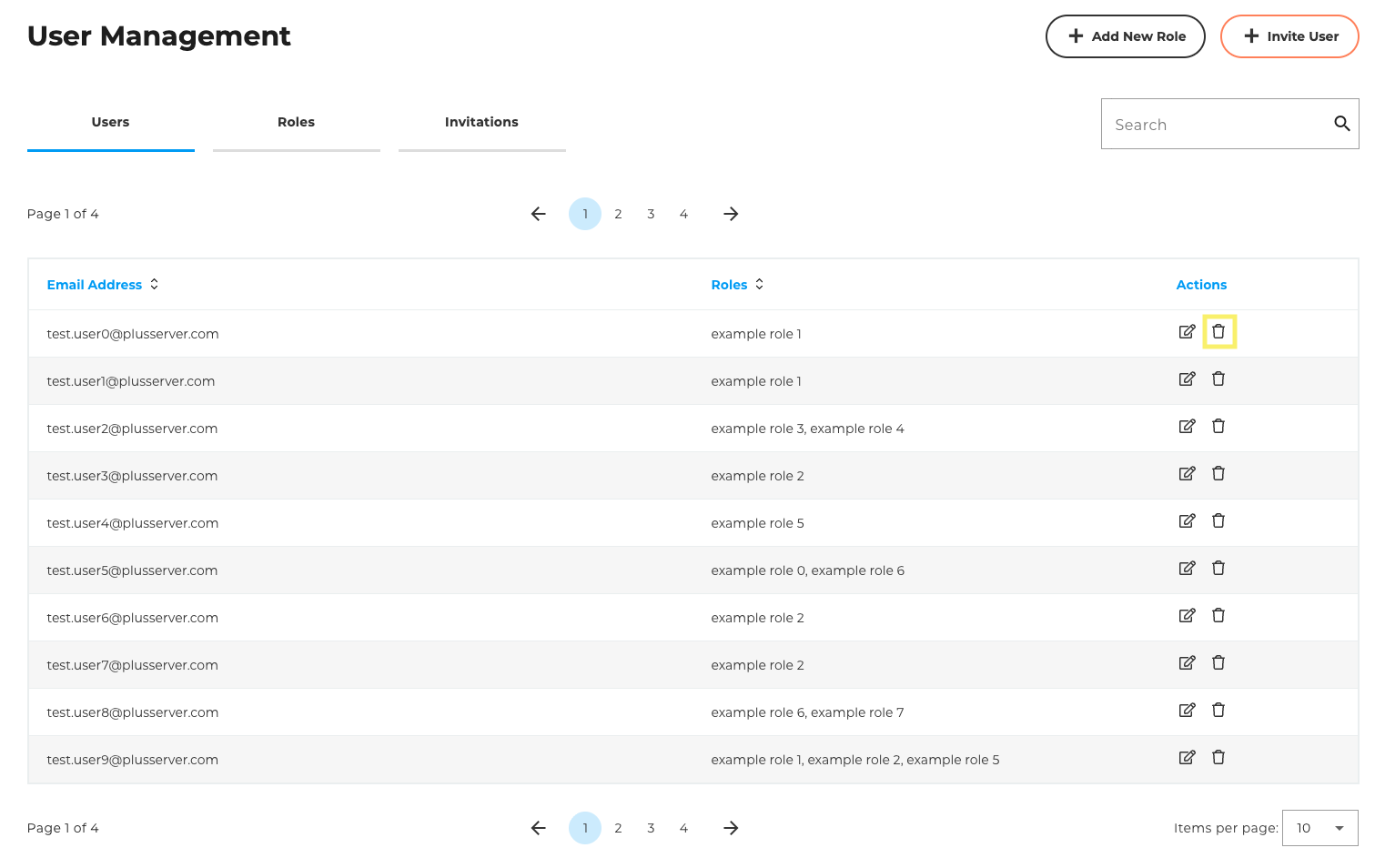
To prevent accidental deletion, you’ll be asked to type a confirmation word.

Delete Multiple Users
If you want to remove several users, you don’t have to delete them one by one. The user overview page has a “Delete Multiple Users” button for this.
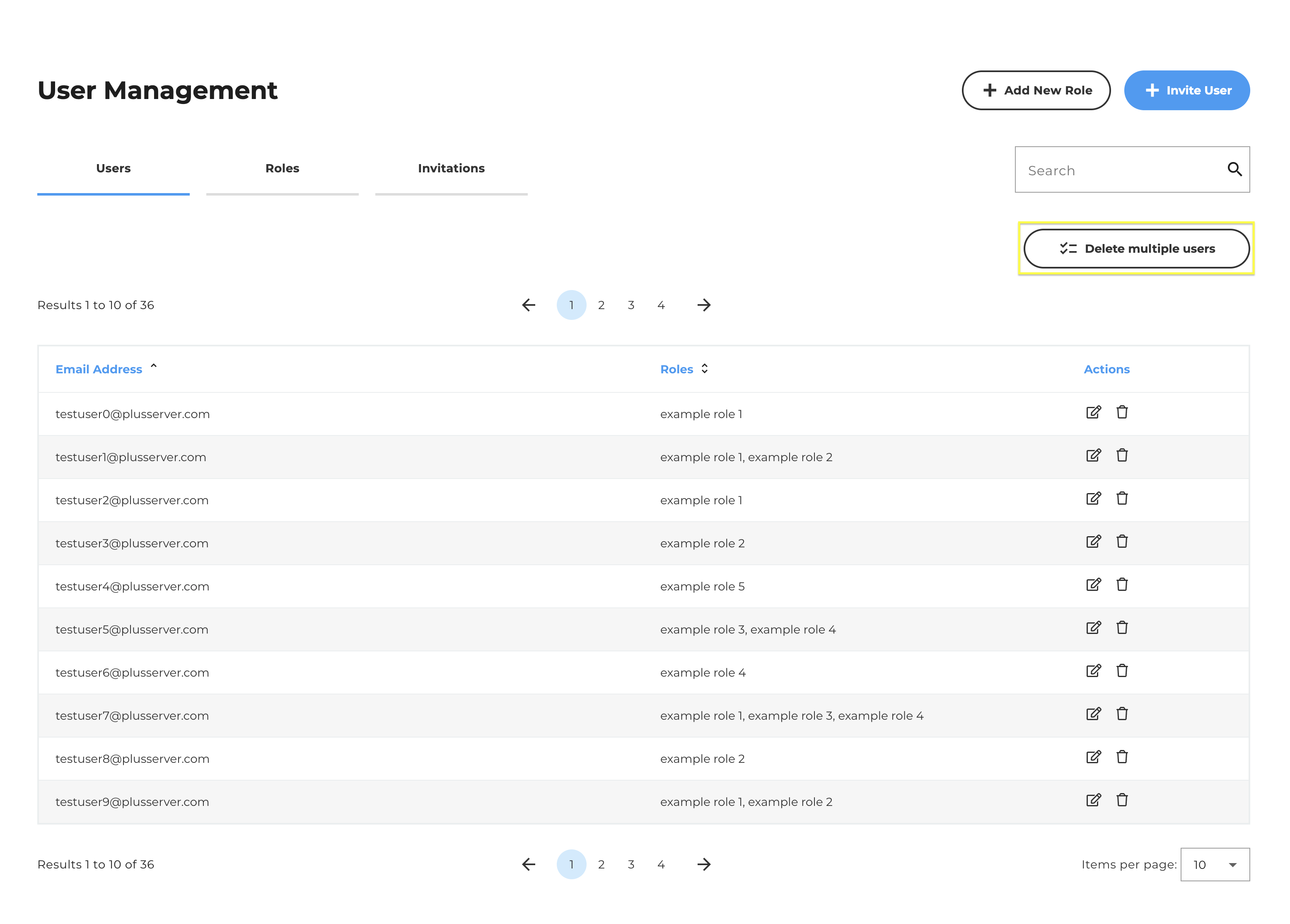
Clicking it activates multi-delete mode. A checkbox now appears in front of each user, and an info area at the top of the page shows how many users are currently selected. The icons for editing and deleting individual users are disabled in this mode.
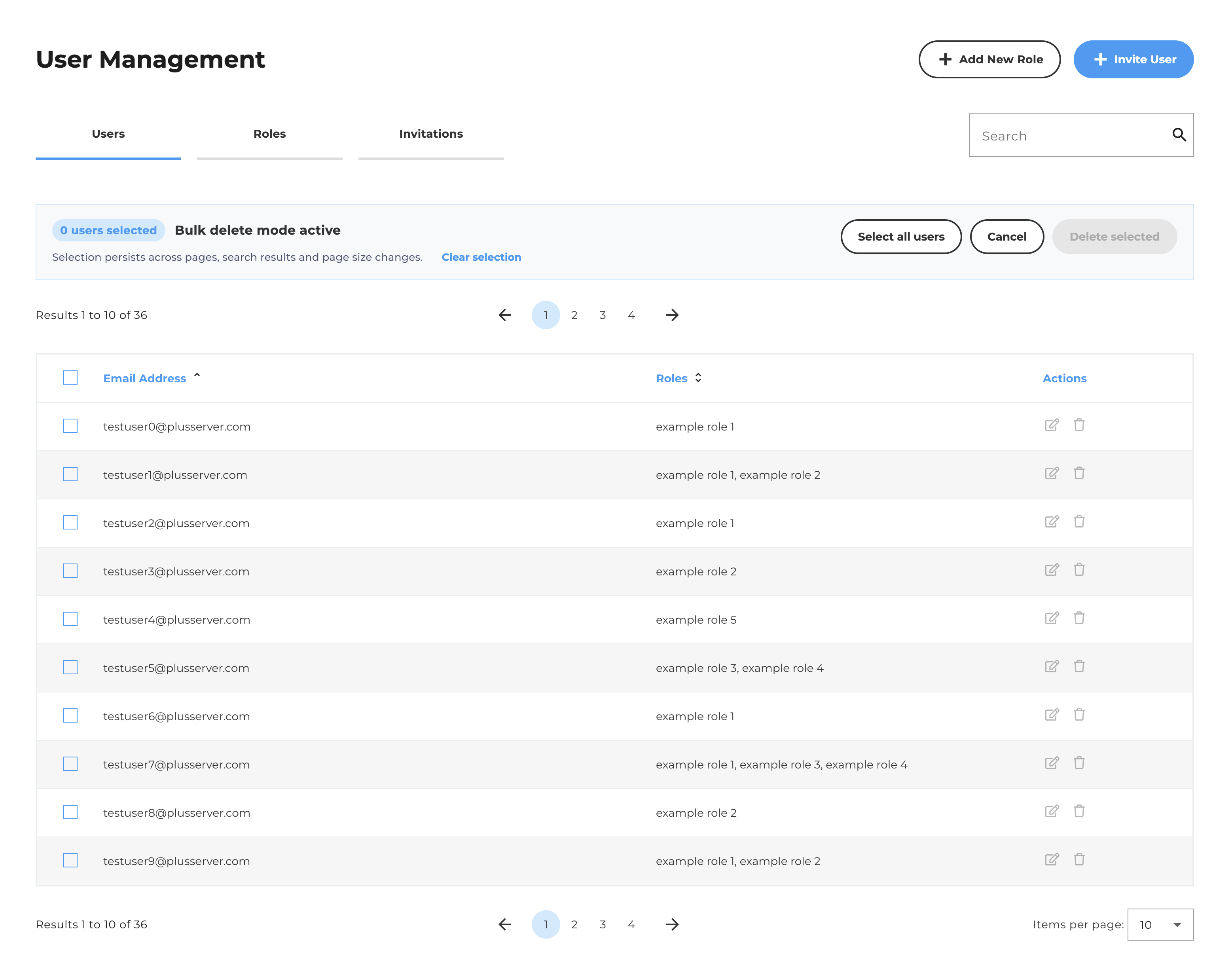
Users can be selected as follows:
- Individually: using the checkbox in front of each user
- All users on the current page: using the checkbox in the table header
- All users: using the “Select All Users” button
The selection is kept when you switch pages, use the search, or change the number of entries per page. This means users from different pages can be deleted together. “Clear Selection” resets the selection, and “Cancel” exits multi-delete mode.
As soon as at least one user is selected, the “Delete Selected” button becomes active.
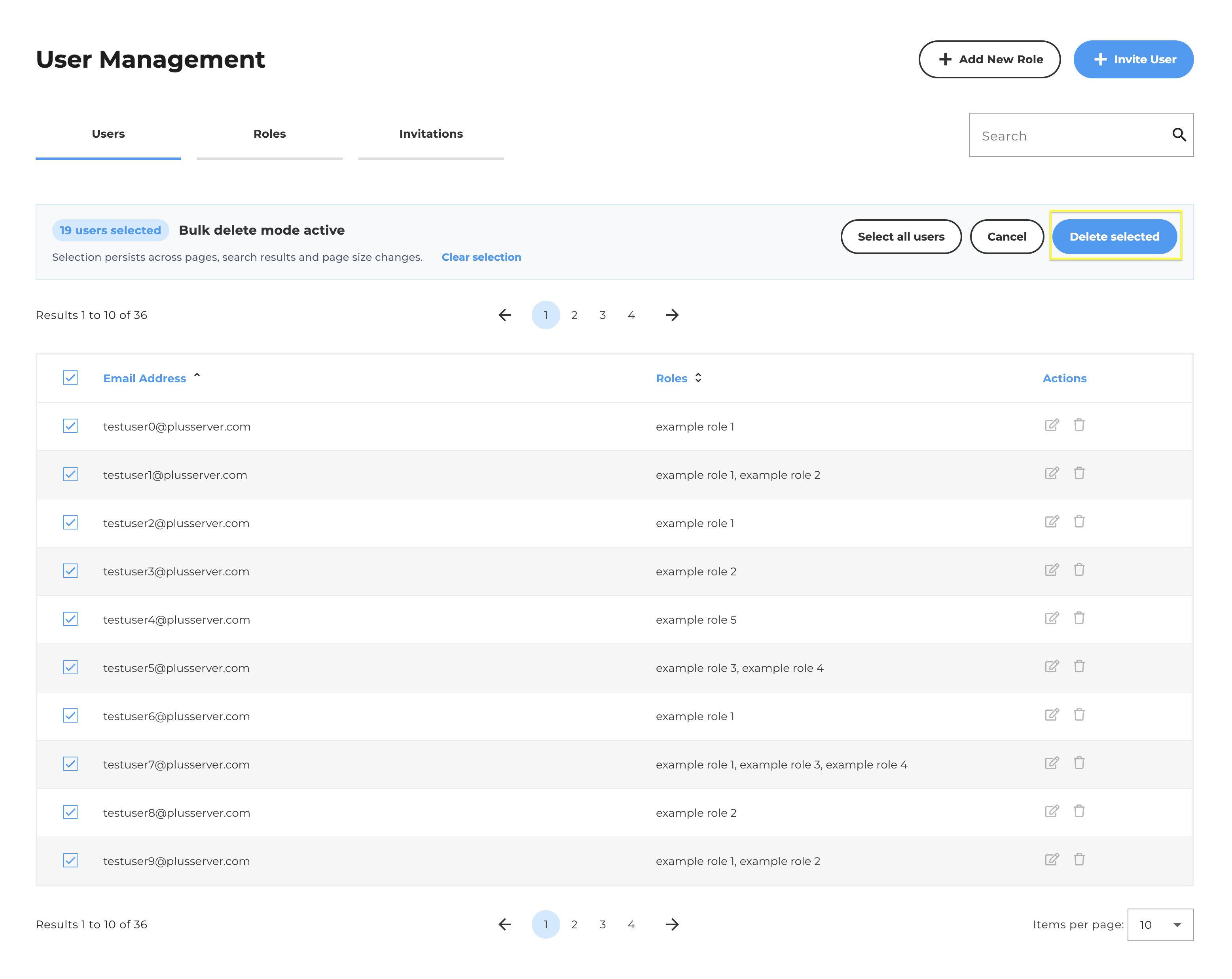
A confirmation dialog then opens. It lists all selected users once more with their status, email address, name and roles, so you can review the selection before deleting.
If the selection includes a main contact person or a CloudHub administrator, an additional warning is shown and the affected users are marked in the list. In this case, manual follow-up work is required after deletion, and a ticket must be created in CoBi.
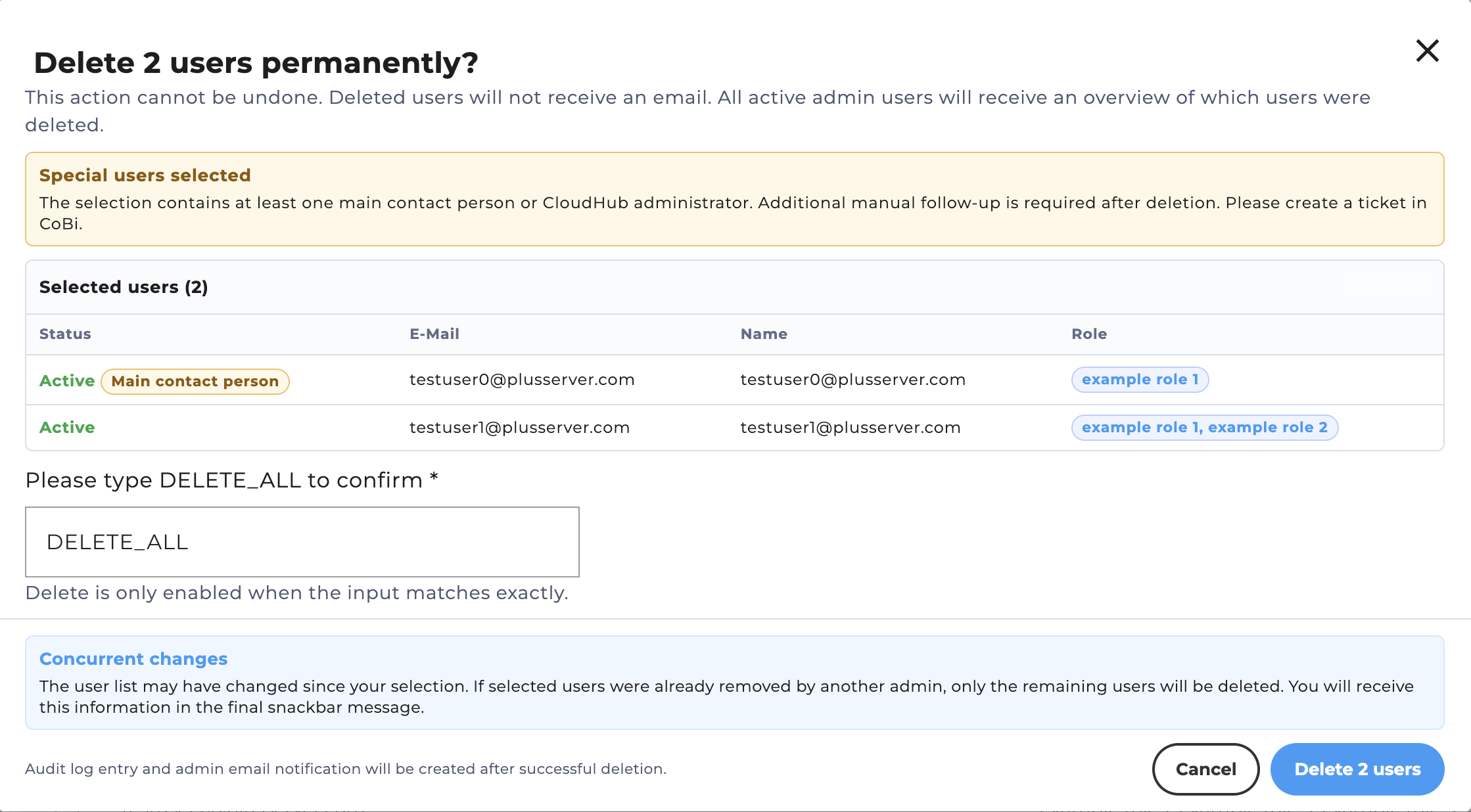
To prevent accidental deletion, you must type DELETE_ALL into the input field to confirm. Deletion is only possible if the input matches exactly. Then click the “Delete X Users” button, which shows the number of users to be deleted.
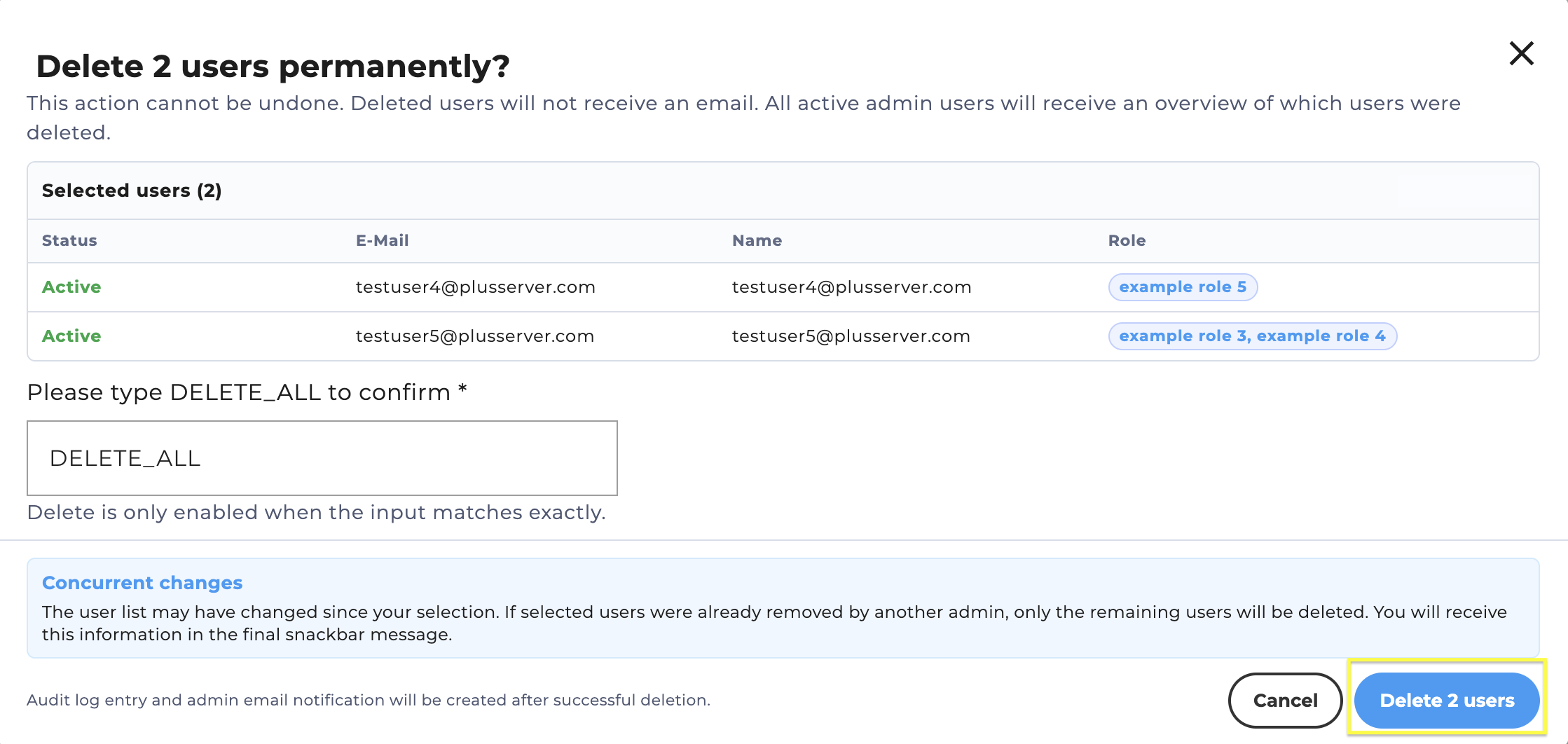
Please note:
- Deletion cannot be undone.
- Deleted users do not receive an email notification.
- All active admin users receive an email with an overview of which users were deleted.
- After successful deletion, an entry is created in the audit log.
- If other admins have already deleted some of the selected users in the meantime, only the remaining users are deleted. A message after the deletion process informs you about this.