Firewall
3 minute read
Restrictions
The firewall included with your server is a basic packet filter that only processes incoming packets. The following additional restrictions apply:
- Removing (not deactivating) ALL firewall rules results in the firewall itself being deactivated - no more filtering takes place (Any-Any Accept)!
- This also means: Adding a single rule always activates the firewall - only packets that have been explicitly enabled are allowed.
- A maximum of 20 rules per IP subnet can be created.
- We do not have any logs of rejected or accepted packets, so these cannot be used to assist with troubleshooting.
Manage
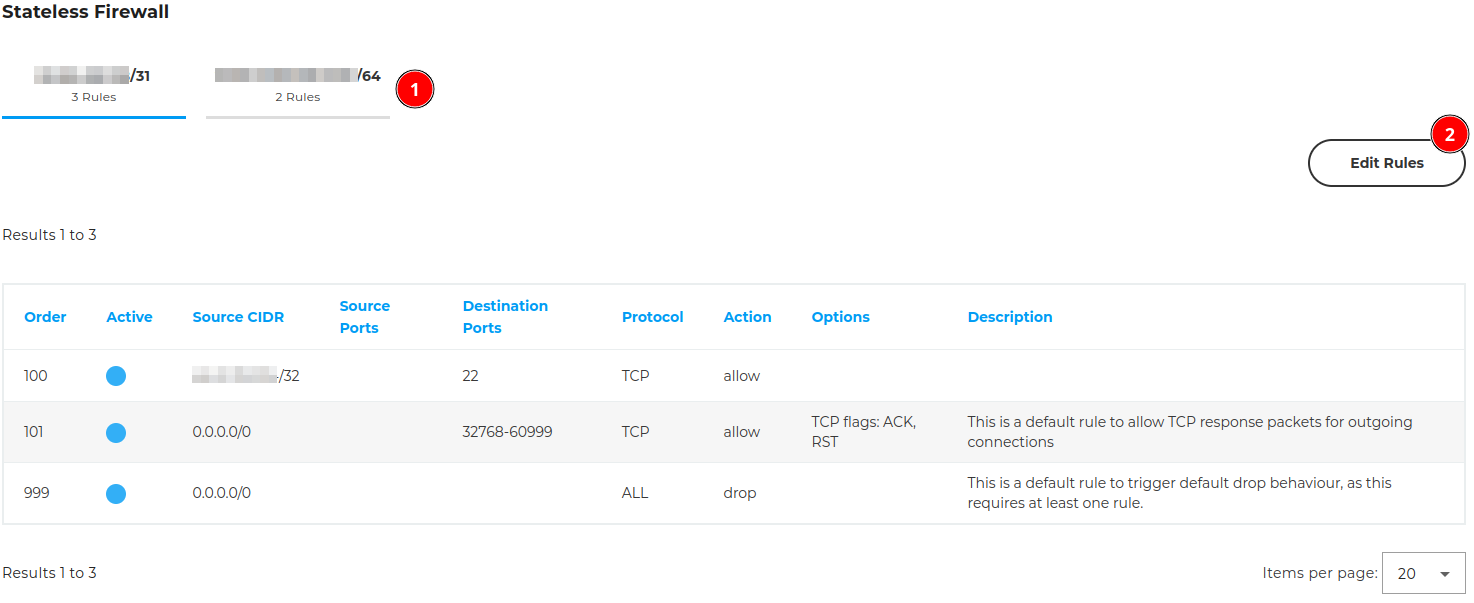
To modify firewall rules, login into CloudHub and open the dashboard of your server (Product Dashboard -> Dedicated Server -> Choose server). The section “Stateless Firewall” is located in the tab “Information”
The firewall rules are divided by IP subnets (1). To modify these rules, enter edit mode (2).
Create and modify rules
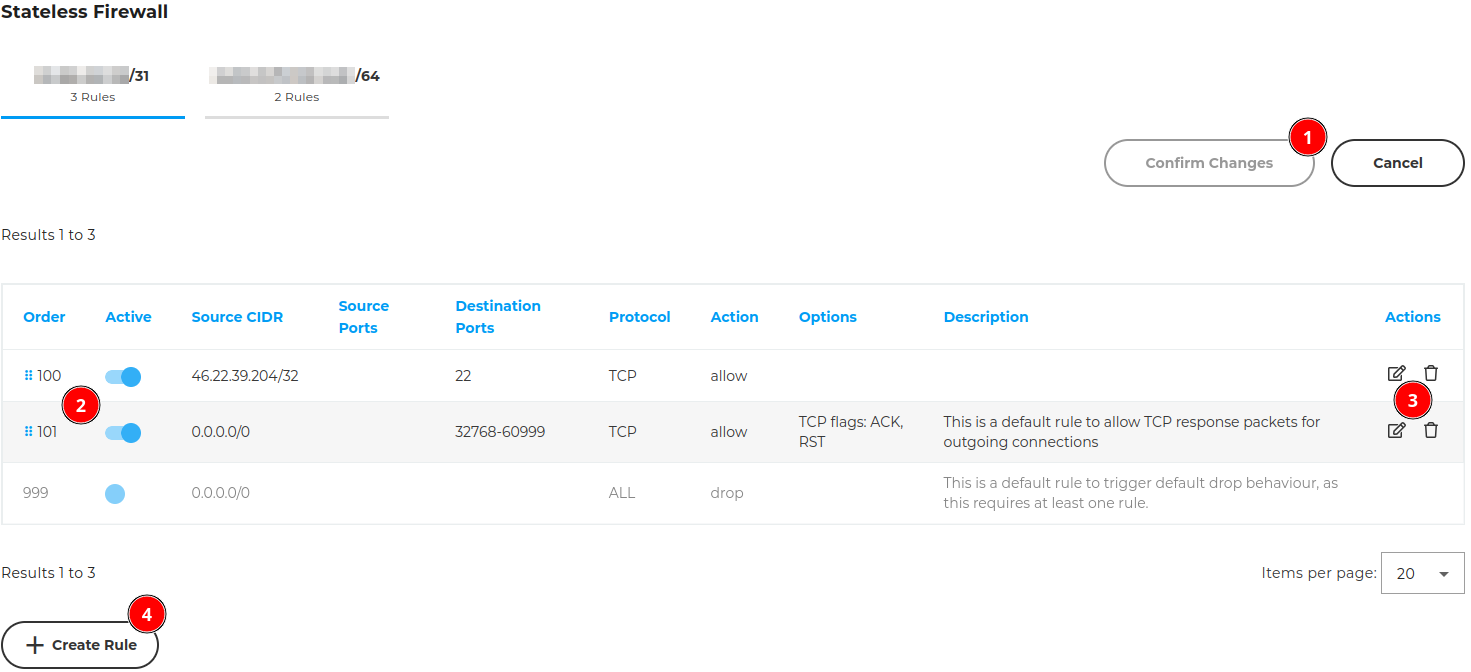
In edit mode all changes are staged and only saved until confirmed by button (1). After saving it takes about five minutes for changes to become active.
Existing firewall rules can be sorted by drag & drop, deactivated (2), modified and deleted (3).
New firewall rules can be created as well (4).
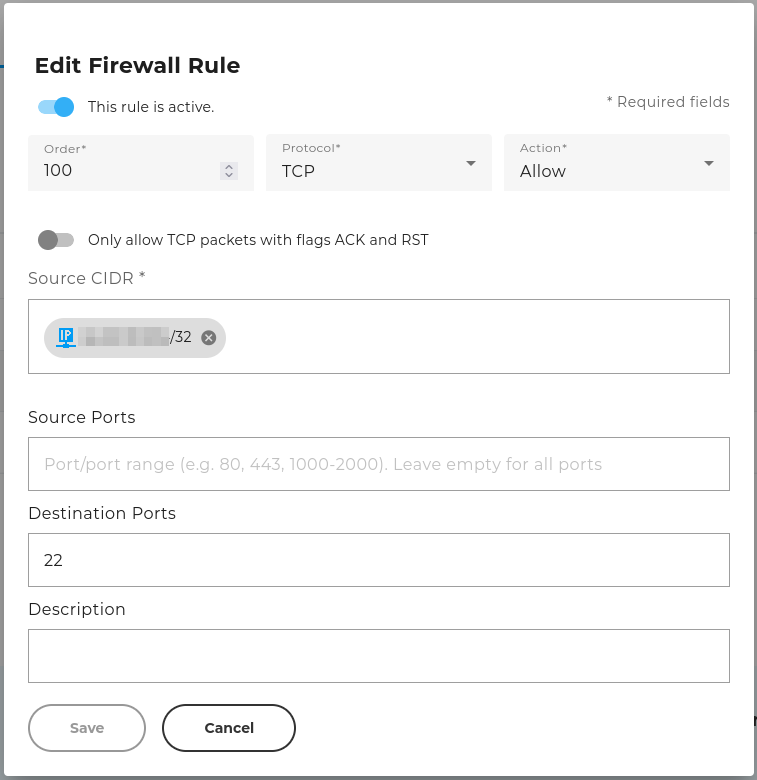
All options of a rule can be changed via create or modify dialog.
The order is determined by given numeric value and translates into corresponding sorting of firewall rules.
Source CIDRs have to be either network address + subnet mask or host address + host mask.
Some examples:
| Source CIDR | Valid? | Explanation |
|---|---|---|
203.0.113.0/24 | ✓ | Network address and fitting subnet mask |
203.0.113.0/24 | ✓ | Host address and fitting subnet mask |
203.0.113.1/24 | ✗ | Incorrect, as host adress and subnet mask of a network. Correct would be: 203.0.113.1/32 (only one IP adress) or 203.0.113.0/24 (all IP adresses of a network) |
2001:0db8::/64 | ✓ | Network address and fitting subnet mask |
2001:0db8::1/32 | ✓ | Host address and fitting subnet mask |
2001:0db8::1/64 | ✗ | Incorrect, as host adress and subnet mask of a network. Correct would be: 2001:0db8::1/32 (only one IP adress) or 2001:0db8::/64 (all IP adresses of a network) |
Source and destination ports are optional fields. Leaving them empty means “any”/“all” ports.
Enumerations and port ranges can be defined together, e.g.: 22, 80, 443, 8000-8999.
TCP Established (Responses)
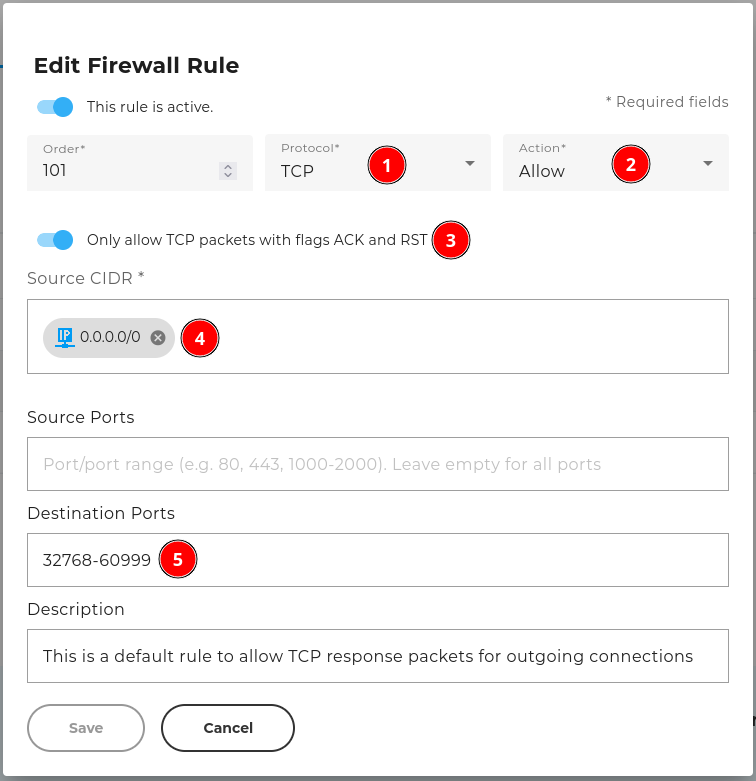
As this is a stateless firewall, there is no connection awareness and responses to outgoing connections have to be explicitly allowed. For this a rule with the flag ACK and RST has to be created.
We preconfigure servers by default with such firewall rule.
The protocol (1) has to be “TCP”, the action (2) “Allow” and the corresponding option (3) enabled.
As Source CIDR (4) is usually “0.0.0.0/0” correct, if no other restrictions are desired.
Destiniation ports (5) depend on the operating system and its configuration. The “high ports” are to be set, that are being used for most outgoing connections by the operating system.
In Linux systems the configuration can be shown via command sysctl net.ipv4.ip_local_port_range.